
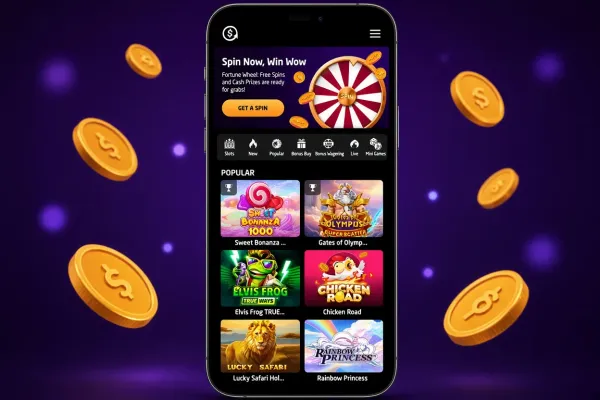
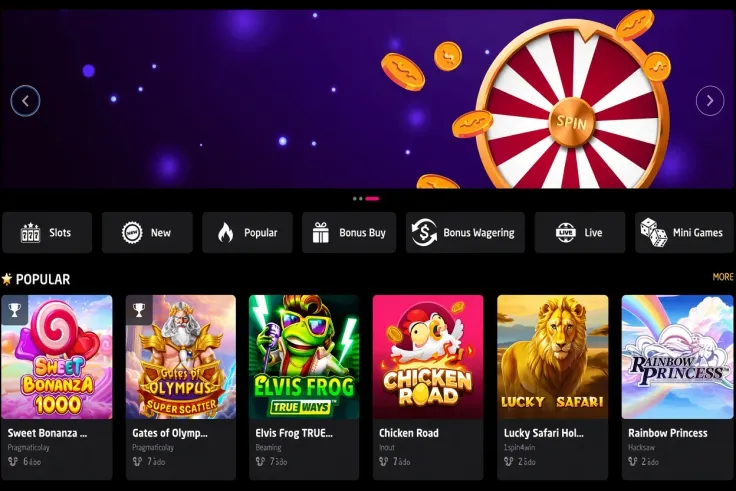
Stay Casino has no Android app. On an Android phone you play on the mobile site in Chrome: open the site, log in or register, and add a shortcut to your home screen if you want one-tap access. The app page compares the phone options, and the mobile version page covers the browser route that applies to any phone.
What you get on an Android phone

The mobile site is the Android route to Stay Casino. It opens in the browser, so there is nothing to find in an app store. If you already have an account, the log in page covers the way back in. If you are new, the sign up guide explains registration, and the welcome bonus page covers the offer for new accounts. T&Cs apply.
Stay Casino also runs a live casino. Live games show video, so a steady connection and a screen you can read matter more there than anywhere else. Android phones vary a lot in screen size, so before you rely on a live game, open one on your own phone and check that the video and the controls are easy to read.
Playing without an app

Because there is no Android app, the browser does the work. The steps above show how to open the site and add the shortcut. The shortcut sits on your home screen like an app icon, but it is only a link to the website and it opens in the browser.
On Android, one point is worth stating clearly. The phone can be set to install files from outside the app store, and that setting should stay off. Do not install an APK or any app file from an unknown source, including a link sent in a message, an email or an advert. Stay Casino has no Android app, so any app or file that carries its name did not come from Stay Casino.
Open the site by typing the address yourself, or from a bookmark or shortcut you created. Keep Chrome and Android up to date, because updates include security fixes. If a page looks wrong or does not load, check your connection first and then try again, instead of looking for another way in. If you want the iPhone version of these steps, the iPhone app page covers it.
Practical points on Android

Set a screen lock with a passcode, pattern or fingerprint, and do not hand the phone to anyone while you are logged in. Log out when you have finished, especially on a phone that other people use. Let Chrome save a password only if the phone is locked and used by you alone.
Use your own mobile data or a network you trust when you log in or pay. Public Wi-Fi in cafes and stations is open to others on the same network, so avoid it for anything that involves your account or a payment. Live video uses a lot of mobile data, so check your plan before you stream. Android's built-in digital wellbeing tools can show how long you spend in the browser and let you set a timer, which helps if you want a limit on a session. If the account offers deposit limits or time-outs, set them before you play.